- 1. Go to the AppRiver portal at cp.appriver.com and log in with your Office 365 email and password.
- If you’ve never logged in before, select “Forgot Password” to reset it.
Please note: Resetting your password in AppRiver will also update your Office 365 password.
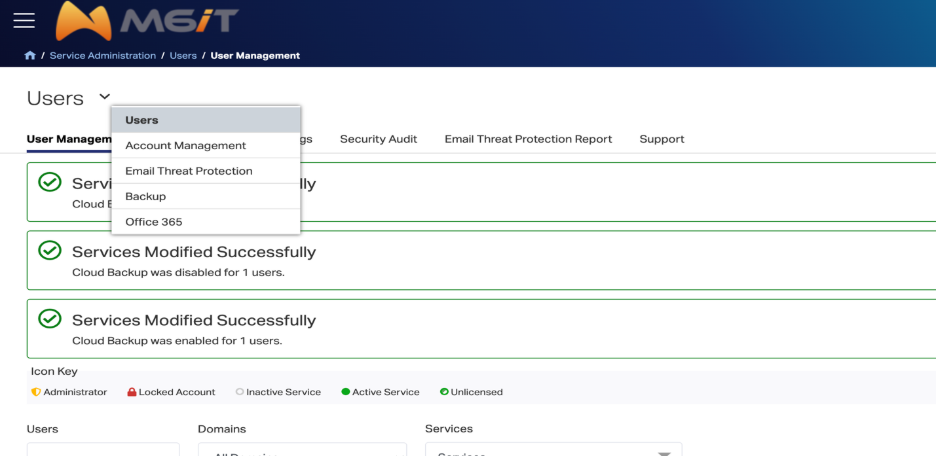
2. Once logged in, click the dropdown menu next to “Users” at the top of the page and choose “Office 365.”
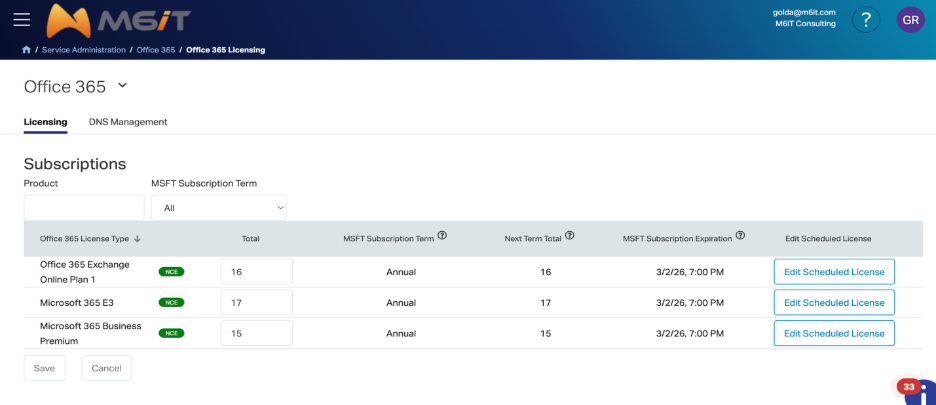
3. Scroll to the bottom of the page to view your license list, counts, and renewal dates as shown below:
Was this article helpful?
That’s Great!
Thank you for your feedback
Sorry! We couldn't be helpful
Thank you for your feedback
Feedback sent
We appreciate your effort and will try to fix the article